


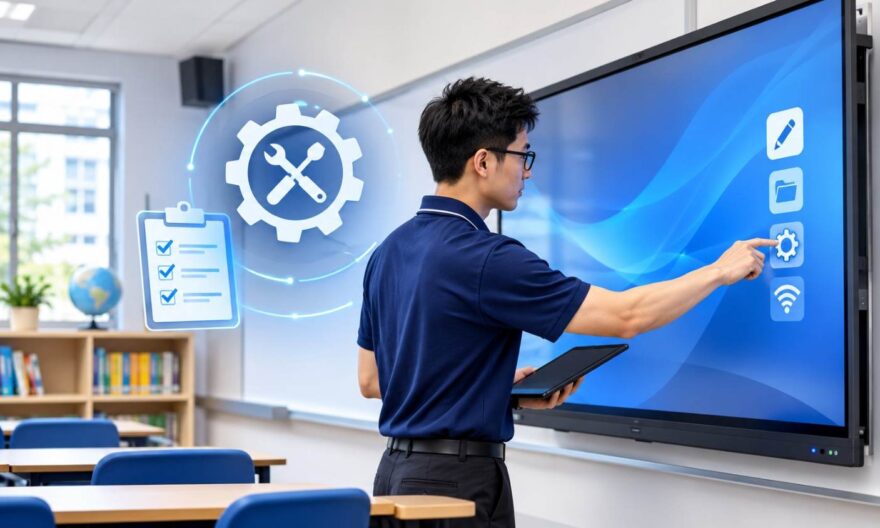
Keeping an interactive display for classes running smoothly requires regular maintenance, proactive checks, and a clear troubleshooting process. Common issues — including unresponsive touch screens, connectivity drops, and software glitches — can usually be resolved without raising a support ticket. A structured checklist helps IT staff catch problems early and minimise classroom disruption.
Why Maintenance Matters More After Installation
Once an interactive board display is mounted and commissioned, many schools assume the hard work is done. In practice, the post-installation phase is where long-term reliability is either built or eroded. Dust accumulation, firmware drift, inconsistent calibration, and network changes all degrade performance over time.
According to the Singapore Ministry of Education’s EdTech guidelines, schools are expected to maintain classroom technology to a standard that supports uninterrupted teaching. That means IT teams need a repeatable process — not just reactive fixes.
Monthly Maintenance Checklist for Interactive Displays
Run through this checklist once a month per classroom unit. It takes under 20 minutes per display and prevents the majority of reported faults.
Physical and Environmental Checks
- Inspect the screen surface for scratches, smudges, or pressure marks
- Clean the display using a dry or slightly damp microfibre cloth — never solvent-based cleaners
- Check that mounting brackets are secure and the panel has not shifted
- Confirm ventilation gaps around the unit are unobstructed (minimum 10 cm clearance on all sides)
- Inspect all cable connections — HDMI, USB, and power — for signs of wear or loose seating
- Check that stylus pens are present, undamaged, and stored correctly
Software and Firmware Checks
- Verify the display is running the latest firmware version from the manufacturer
- Check that the embedded operating system (Android or Windows) has received recent security patches
- Review installed apps — remove unused software that may slow performance
- Confirm that the screen mirroring or casting solution (e.g., Miracast, AirPlay) is functioning correctly
- Test the whiteboard application and ensure saved files are accessible
Connectivity and Network Checks
- Confirm the display connects reliably to the school Wi-Fi network
- Test wired LAN connection if the unit uses a network port
- Verify that remote management software (if deployed) can detect and communicate with the display
- Check that the display’s IP address is static or reserved via DHCP — this prevents connectivity issues after router restarts
Touch and Display Calibration: When and How to Recalibrate
Calibration drift is one of the most common complaints from teachers. The touch response feels off — taps register in the wrong position, or drawing lags behind the stylus. This usually happens after a firmware update, a physical knock, or prolonged heavy use.
To recalibrate a typical interactive flat panel display:
- Navigate to Settings → Display → Touch Calibration (menu labels vary by brand)
- Follow the on-screen prompts, pressing each calibration point firmly and accurately
- Test touch accuracy across all four corners and the centre of the screen
- Restart the unit and retest before returning the classroom to use
If calibration issues persist after two attempts, check whether a third-party screen protector has been applied — this can interfere with infrared or capacitive touch sensors. Remove it and recalibrate.
Common Faults and How to Resolve Them
| Fault | Likely Cause | First Action
|
|---|---|---|
| Screen unresponsive to touch | Firmware bug or driver conflict | Restart display; update firmware |
| No signal from connected device | Wrong input source selected | Cycle input source; reseat HDMI cable |
| Display turns off mid-lesson | Auto-sleep timer set too aggressively | Adjust power settings in display menu |
| Poor image quality or colour shift | Incorrect display mode or ageing backlight | Reset display settings to factory default |
| Wi-Fi drops frequently | Channel congestion or IP conflict | Assign static IP; switch Wi-Fi channel |
| Apps crash or run slowly | Low storage or background processes | Clear app cache; uninstall unused apps |
End-of-Term Deep Checks
Beyond monthly tasks, a more thorough review at the end of each school term helps IT teams stay ahead of hardware fatigue. Add these to your end-of-term routine:
- Run the manufacturer’s built-in diagnostic tool if available
- Check cumulative usage hours against the panel’s rated backlight lifespan
- Review the support log — recurring faults in the same room may point to an environmental issue (heat, humidity, or power fluctuations)
- Update all classroom display firmware in a single scheduled batch to reduce disruption
- Back up any customised settings profiles before applying updates
- Confirm warranty status for each unit and log any panels nearing expiry
Building a Simple Fault-Logging System
A shared fault log — even a basic spreadsheet — transforms how your IT team responds to display issues. Each entry should capture the date, classroom, fault description, action taken, and resolution time. Over one or two terms, patterns emerge: specific rooms with persistent connectivity faults, units that consistently need recalibration, or software versions that cause instability.
This data makes a compelling case for proactive replacement budgeting and helps justify infrastructure upgrades to school leadership — far more persuasive than anecdotal reports.
When to Escalate to the Supplier
Not every fault can or should be handled in-house. Escalate to your supplier if:
- Touch sensors fail completely and cannot be restored through recalibration or firmware updates
- Dead pixels or backlight bleed appear and worsen over days
- The unit fails to boot after a firmware update
- Physical damage affects the structural integrity of the mount or panel
When escalating, provide the fault log entry, firmware version, and steps already taken. This cuts resolution time significantly and avoids repeating basic diagnostics the supplier will request anyway.
Schools that invest in structured maintenance see measurably fewer lesson disruptions and longer hardware lifespans. If you are evaluating or expanding your classroom display setup, Exotic offers interactive flat panel displays designed for education environments, with local support in Singapore to back long-term deployments.
Frequently Asked Questions
How often should an interactive display for classes be serviced?
A basic check should be carried out monthly, covering physical condition, software updates, and touch calibration. A more thorough diagnostic review is recommended at the end of each school term to catch hardware fatigue and address recurring issues before they affect teaching.
What causes an interactive board display to become unresponsive?
Unresponsive touch is most commonly caused by outdated firmware, a software conflict, or a physical obstruction on the screen surface. Restart the unit first, then update firmware. If the issue persists, recalibrate touch settings through the display’s system menu.
Can school IT staff update firmware without vendor support?
Yes, in most cases. Manufacturers provide firmware update files via their support portals. IT staff can apply updates directly through the display’s settings menu or via USB. Always back up display settings before updating and schedule updates during non-teaching hours.
How do you fix a laggy or slow interactive display in a classroom?
Slow performance is usually caused by low internal storage or too many background apps running. Clear the app cache, uninstall unused software, and restart the unit. If sluggishness persists, a factory reset followed by a clean software reinstall typically resolves it.
What should be included in a classroom display fault log?
Record the date, classroom location, fault description, firmware version, troubleshooting steps taken, and resolution outcome. A consistent log helps identify recurring hardware issues, supports warranty claims, and provides data for future budget planning and infrastructure decisions.
When should a school escalate a display fault to the supplier?
Escalate when in-house troubleshooting fails to resolve the fault — particularly for dead pixels, complete touch failure, post-update boot issues, or physical damage. Provide the fault log and steps already attempted to speed up the supplier’s diagnosis and response.